
Cumulative Layout Shift (CLS) is a visceral user experience failure made measurable. As a WordPress developer, I don’t see it as just a Google Lighthouse score. I see it as the digital equivalent of a contractor building a house where the walls keep moving after you’ve moved in. It breaks trust, harms conversions, and signals a lack of front-end architectural discipline. In the WordPress ecosystem, CLS is a particularly thorny problem because it sits at the intersection of dynamic content, a plugin-based architecture, often-unoptimized themes, and server-level delivery.
This guide is the manual I’ve built through fixing CLS on everything from brochure sites to complex WooCommerce stores. We’ll go beyond the standard “add image dimensions” advice and delve into the full stack: from server configuration (NGINX, Apache, LiteSpeed) and caching plugin intricacies, down to the specific HTML a poorly coded plugin outputs. This is a systems-level approach to stability.
What CLS Actually Measures:
Cumulative Layout Shift quantifies the total unexpected movement of visible elements within the viewport during the entire page lifecycle. The key word is unexpected. A slide-in menu on click is fine. Text jumping because a newly loaded font is narrower is not.
The formula is: Impact Fraction × Distance Fraction
A score below 0.1 is good. Above 0.25 is poor. In WordPress, it’s alarmingly easy to hit 0.3 or higher due to the assembly-line nature of page creation: header from theme, content from editor, widgets from plugins, styles from multiple enqueued files—all merging in real-time.
You must become a forensic analyst for your page load. Generic fixes waste time.
1. Chrome DevTools – The Primary Crime Lab:
Layout Shift Regions (in DevTools > More Tools > Rendering). Refresh. The flashing purple boxes are your shifting elements. This is the single best visual tool.Ctrl+Shift+P > “Show Coverage”). Reload the page. It shows all CSS/JS files and what percentage of their code was used during the initial page render. Massive, unused CSS files loaded in the header are a major culprit, as they block rendering and can contain styles that cause late shifts.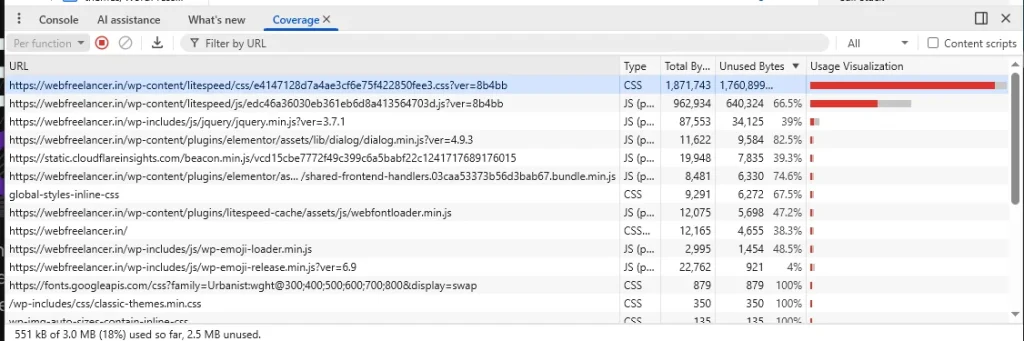
2. The Real-World Baseline – Field Data:
/*/blog/*) or plugin pattern.The diagnostic question chain:
Before a single tag is parsed, your server’s behavior sets the stage for stability. A slow Time to First Byte (TTFB) exacerbates every subsequent shift because the browser is idle, waiting to start.
NGINX Configuration (Common in High-Performance Hosting):
The goal is fast, efficient delivery of static assets and proper caching headers.
text
# Gzip compression for faster transfer of HTML, CSS, JS
gzip on;
gzip_vary on;
gzip_min_length 1024;
gzip_types text/plain text/css text/xml text/javascript application/javascript application/xml+rss application/json;

# Cache static assets - CRITICAL for repeat-visit stability
location ~* \.(js|css|png|jpg|jpeg|gif|ico|svg|woff|woff2|ttf|eot)$ {
    expires 1y;
    add_header Cache-Control "public, immutable";
}
The immutable Cache-Control header is a CLS secret weapon. It tells the browser a cached version of this style or font file will never change, allowing aggressive reuse without revalidation, preventing late-style recalculations.
Apache Configuration (via .htaccess – Common in Shared Hosting):
text
# Leverage browser caching - Same principle as NGINX
<IfModule mod_expires.c>
ExpiresActive On
ExpiresByType image/jpg "access plus 1 year"
ExpiresByType image/jpeg "access plus 1 year"
ExpiresByType image/gif "access plus 1 year"
ExpiresByType image/png "access plus 1 year"
ExpiresByType text/css "access plus 1 month"
ExpiresByType application/javascript "access plus 1 month"
ExpiresByType font/woff2 "access plus 1 year"
ExpiresHeader set Cache-Control "public, immutable"
</IfModule>

# Compress text files
<IfModule mod_deflate.c>
AddOutputFilterByType DEFLATE text/html text/css text/javascript application/javascript
</IfModule>
LiteSpeed Server – The Performance Game-Changer:
LiteSpeed is not just a drop-in Apache replacement; its LSCache module is uniquely integrated with WordPress. Unlike reverse proxies (like Varnish), LSCache understands WordPress cookies, user sessions, and page types. For CLS, its power is in delivering a complete, rendered page from server RAM in milliseconds. This near-instant delivery reduces the window where asynchronous shifts can occur.
A properly configured LSCache rule set:
If your host uses LiteSpeed, this plugin isn’t optional; it’s the control panel for your server’s performance capabilities. Misconfiguration here can cause CLS. Proper configuration is your strongest weapon.
1. Page Optimization Tab – This is the Heart of CLS Control:
<style> blocks into the combined file, preventing multiple style recalculations.<head>. The rest of the CSS is loaded asynchronously. This eliminates the “Flash of Unstyled Content” (FOUC) that is a massive source of initial layout shift.
width and height attributes on the fly if your theme is missing them—a crucial fix.srcset attributes for responsive images, ensuring the browser picks an appropriately sized image and doesn’t downscale a massive one (which can cause a momentary shift).2. Object Cache Tab (If Supported by Host):
A persistent object cache (Redis/Memcached) via this tab drastically reduces database query time. This improves TTFB, making the entire page assembly process faster and more synchronous, indirectly reducing CLS.
3. CDN Tab (If Using a CDN):
font files and uses immutable caching. A font that fails to load due to CORS will cause a FOUT/FOIT and shift.With a stable server and caching foundation, we now attack the component-level offenders.
Culprit 1: Media – Images, Videos, Embeds
aspect-ratio CSS Property Revolution: The modern, robust solution.html<!– WordPress outputs this (good) –> <img src=”hero.jpg” alt=”…” width=”1600″ height=”900″ loading=”lazy”>css/* Your theme’s CSS should have this */ img { max-width: 100%; height: auto; /* Lets the aspect-ratio property control height */ aspect-ratio: attr(width) / attr(height); }This guarantees space reservation. For browsers not supporting aspect-ratio, the width and height attributes act as the fallback via the height: auto behavior.lazysizes that integrates with Intersection Observer and supports data-srcset and data-sizes="auto" for responsive images without shift.Culprit 2: Dynamically Injected Content (Ads, Embeds, CTAs)
Culprit 3: Web Fonts – The Silent Layout Killer
A font swap can change text length by 10-15%, shifting entire text blocks.
@font-face Strategy:css@font-face { font-family: ‘Inter’; src: url(‘/fonts/Inter-Regular.woff2’) format(‘woff2’); font-display: swap; font-weight: 400; /* Advanced: Use size-adjust to match fallback font metrics */ /* size-adjust: 98%; */ }font-display: optional on Fast Connections: This tells the browser to only use the web font if it’s available in the first ~100ms, otherwise it permanently uses the fallback. This is excellent for stability but requires testing. This can sometimes be configured at the server/CDN level via the font-display header.Culprit 4: CSS & JavaScript Delivery Failures
preload or as async stylesheets.document.write.Sometimes you need to intervene at the WordPress API level.
1. Force Dimensions on Post Thumbnails:
If your theme’s the_post_thumbnail() call doesn’t specify a size, or uses a custom size without registered dimensions, force it.
php
// In your child theme's functions.php
add_filter( 'post_thumbnail_html', 'add_image_dimensions_to_thumbnails', 10, 3 );
function add_image_dimensions_to_thumbnails( $html, $post_id, $post_image_id ) {
    if ( false === strpos( $html, ' width=' ) || false === strpos( $html, ' height=' ) ) {
        $image_attributes = wp_get_attachment_image_src( $post_image_id, 'full' );
        if ( $image_attributes ) {
            $width = $image_attributes[1];
            $height = $image_attributes[2];
            $html = preg_replace( '/src=/', 'width="' . esc_attr( $width ) . '" height="' . esc_attr( $height ) . '" src=', $html );
        }
    }
    return $html;
}
2. Dequeue Unused Plugin Styles/Scripts on Specific Pages:
Prevent irrelevant CSS from blocking rendering.
php
add_action( 'wp_enqueue_scripts', 'selectively_disable_plugin_assets', 999 );
function selectively_disable_plugin_assets() {
    if ( ! is_page( 'contact' ) ) {
        wp_dequeue_style( 'some-contact-form-plugin-css' );
        wp_dequeue_script( 'some-contact-form-plugin-js' );
    }
}
3. Optimize the WordPress Emoji Loader (A Hidden Culprit):
The default emoji script loads an extra CSS file and JS. If you don’t need it, disable it.
php
remove_action( 'wp_head', 'print_emoji_detection_script', 7 );
remove_action( 'wp_print_styles', 'print_emoji_styles' );
1. The content-visibility: auto Property (Cutting-Edge):
This CSS property tells the browser to skip rendering for off-screen elements until they are needed. This can dramatically improve initial render performance on long pages (like blogs). Apply with caution and testing.
css
.post-content {
    content-visibility: auto;
    contain-intrinsic-size: 500px; /* Provide an estimated height for scrollbar stability */
}
2. Managing Cumulative Shift from Animations:
Ensure CSS animations and transitions only trigger on hover or focus, not on page load. Avoid animating properties that trigger layout reflows (width, height, top, margin). Use transform and opacity instead.
3. Third-Party Script Sandboxing:
For scripts you cannot control (like analytics or live chat), load them in an asynchronous, non-blocking manner, preferably using the async attribute. Consider using a script manager like Partytown to run them in a web worker, completely off the main thread.
Layout Shift Regions on a throttled connection.aspect-ratio CSS).swap + optional size-adjust).Fixing CLS is an investment in user psychology and business outcomes. A stable site:
This work is the essence of professional WordPress maintenance. It’s not about making a site fast once; it’s about engineering a stable, predictable experience that performs under all conditions. Whether you’re building a new custom WooCommerce site or optimizing an existing one for speed and core web vitals, treating CLS with this level of rigor is what separates a functional website from a superior digital asset.
Fixing CLS in WordPress is a full-stack challenge. It requires understanding the server’s role in delivery, the caching layer’s role in assembly, the theme’s HTML/CSS output, and the plugins’ resource discipline. There is no single magic setting. It is the cumulative effect of applying a principle: Reserve Space, Load Predictably, Defer the Non-Essential.
By methodically working through server configuration, leveraging the deep capabilities of the LiteSpeed Cache plugin, and surgically correcting theme and plugin output, you can transform a janky, shifting site into a rock-solid platform. The result is a website that doesn’t just score well on a lab test, but feels unequivocally stable and trustworthy to every person who uses it. That is the ultimate goal.
What is the single most common cause of CLS in WordPress?
The most frequent, foundational cause is images without explicit dimensions (width and height attributes). When a theme or plugin outputs an <img> tag without these, the browser cannot reserve space, causing a downward shift when the image loads. The modern fix is combining the width and height attributes with CSS aspect-ratio.
I’m using a LiteSpeed server. Which LiteSpeed Cache plugin setting is most critical for CLS?
The “CSS Critical Generation” setting is paramount. It automatically creates and inlines the critical CSS needed to style above-the-fold content, eliminating render-blocking styles and preventing the initial “flash of unstyled content” (FOUC) that causes major shifts. Ensure this is enabled alongside “CSS Combine” and proper JS deferral with exclusions.
How do web fonts cause CLS, and what’s the best fix beyond font-display: swap?
Web fonts often have different glyph widths than the system fallback font. When the swap occurs, text reflows, shifting surrounding elements. Beyond swap, the advanced fix is using the size-adjust descriptor in your @font-face rule to scale the web font to match your fallback font’s metrics, virtually eliminating the reflow. Preloading your most critical font is also essential.
Can a slow server (high TTFB) worsen CLS?
Absolutely. A high Time to First Byte means the browser is idle, waiting to start downloading and rendering page resources. This delay can magnify the perceived impact of any subsequent shift and desynchronize asset loading. Optimizing server response via object caching (Redis/Memcached), a robust server like LiteSpeed with LSCache, and a CDN is a foundational CLS strategy.
I’ve fixed all images and fonts, but my CLS is still poor. What should I check next?
Investigate dynamically injected content. Use Chrome DevTools’ Layout Shift Regions to identify shifting elements, then view the page source. Look for:
Cookie consent banners or sticky headers that load/change size after the initial paint.
Ad units, embeds, or newsletter signup forms without a container with fixed min-height.
Late-loading CSS or JavaScript from plugins that affect layout (e.g., a slider initialization script that was incorrectly deferred).
Is it safe to defer all JavaScript using the LiteSpeed Cache plugin to improve CLS?
No, this is dangerous. You must exclude JavaScript that is required for the initial layout or render. This typically includes:
Any script that directly manipulates the DOM above the fold before user interaction.
Deferring these will cause severe layout shifts as they load and execute late.
jQuery (if your theme/plugins depend on it early).
Slider/Carousel initialization scripts.
How does content-visibility: auto help with CLS on long pages?
This CSS property tells the browser to skip rendering work for off-screen elements (like later blog posts in an archive) until they are about to enter the viewport. This speeds up the initial render, reducing the chance of early shifts. However, it must be paired with contain-intrinsic-size to provide an estimated height for accurate scrollbar presentation.
After fixing CLS in development, how do I monitor it for real users?
Rely on Google Search Console or Cloudflare > Core Web Vitals report. This provides real-world field data from actual users’ browsers. It will show you page groupings with CLS issues, confirming your fixes are effective in production and highlighting any pages you may have missed.