
If you’ve run a Lighthouse test and seen a poor LCP score, you’re not looking at a simple “speed” issue. You’re looking at a breakdown in your website’s critical rendering path, specifically in how your most important content is delivered. Largest Contentful Paint (LCP) measures how long it takes for the largest visible element usually a hero image, a banner, or a large block of text to render on the screen. A good LCP is under 2.5 seconds. Beyond that, you’re losing users and signaling to search engines that your page isn’t providing a good experience.
In WordPress, a slow LCP is rarely one problem. It’s a cascade of small failures: a server waiting too long to respond, a massive image being loaded without optimization, CSS and JavaScript blocking the browser from rendering anything, and a theme that prioritizes features over performance.
This guide is for those who want to move beyond plugin-based “optimizations” and understand the root causes. We’re going to dig into the manual, technical fixes that address LCP at its source.
LCP marks the point in the page load timeline when the largest text block or image element within the viewport becomes visible. It’s a user-centric metric it measures when they see the main content.
The candidates for LCP are:
< img > elements< image > elements inside an < svg >< video > elements (the poster image is used)url() function (with some important caveats)Crucially, LCP is about painting. The element must be rendered to the screen. This means the browser must have downloaded the asset, processed the HTML and CSS, calculated layouts, and finally painted the pixels. A bottleneck at any of these stages delays your LCP.
Before you change a line of code, you need to know what you’re fighting. Use this diagnostic sequence.
1. Identify Your LCP Element.
Open your page in Chrome DevTools.
img.hero-banner).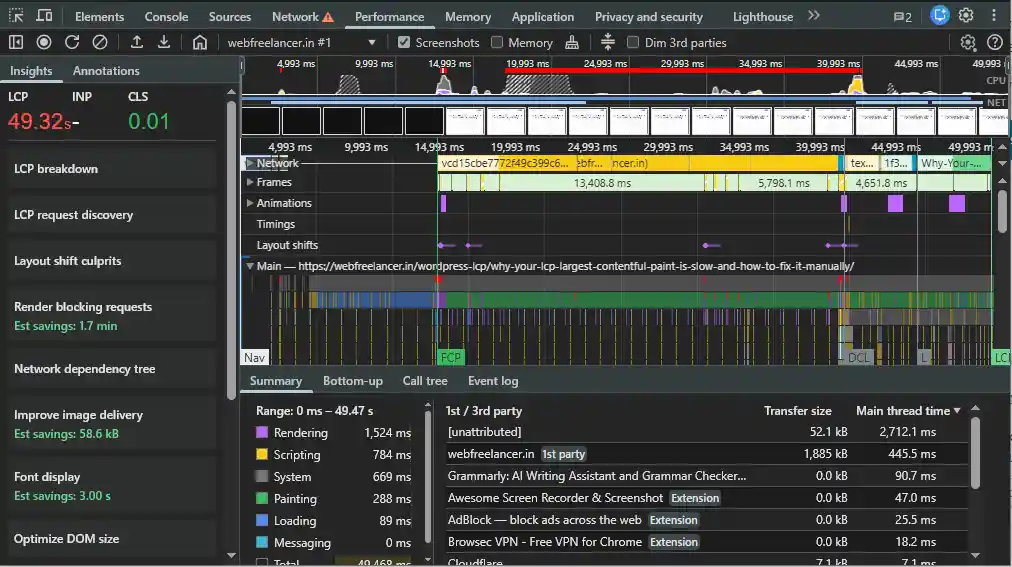
This tells you what you need to optimize. If it’s an image, your job is mostly about resource loading. If it’s a text block, your fight is against web fonts and render-blocking CSS.
2. Measure Your Time to First Byte (TTFB).
This is the foundational metric. In the same Performance trace, check the TTFB timing. If TTFB is above 600ms on a decent connection, your server is the primary bottleneck. No amount of image optimization will fix an LCP that’s waiting 1.5 seconds just to start.
3. Analyze the Network Waterfall.
In DevTools, go to the Network tab, disable cache, and reload. Throttle to “Fast 3G.” Look at the waterfall chart for your LCP resource (the hero image file). Ask:
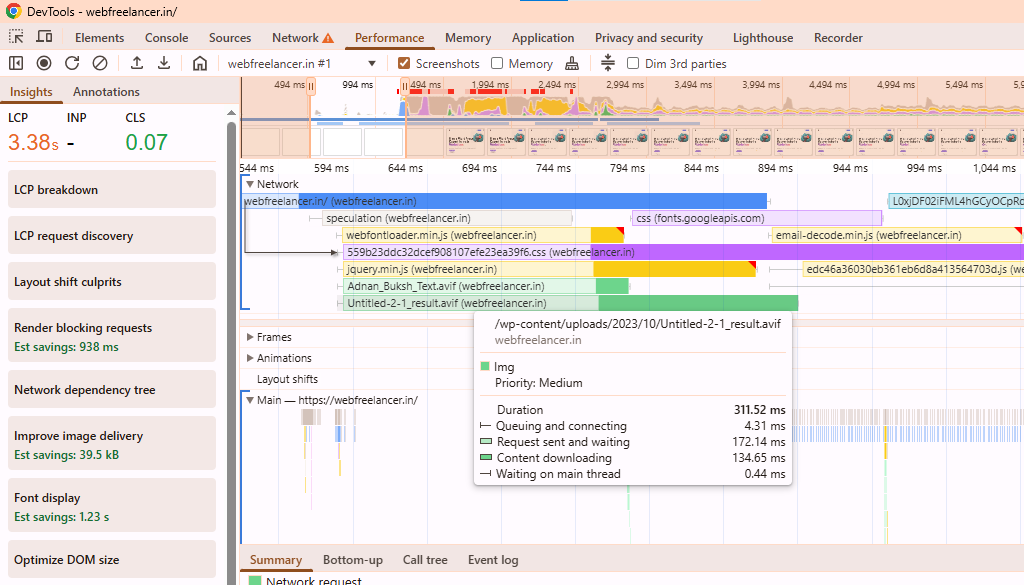
Now, let’s fix the problems, starting from the server and moving up the stack.
Your LCP cannot be faster than your TTFB plus the time it takes to load the LCP resource. A slow TTFB means the browser is idle, wasting precious milliseconds before it can even request your hero image.
Why it happens in WordPress:
WordPress is dynamic. For every page request, it typically executes PHP code, makes database queries (for posts, menus, options), loads plugins, and assembles HTML. This process is computationally expensive if not cached.
The Manual Fixes:
A. Implement Robust Object Caching.
This is the single most effective server-side improvement. Object caching stores the results of database queries in memory. When the same query is needed again (e.g., “get the site’s menu items”), it’s served from RAM instead of hitting the database.
php-redis or php-memcached).B. Use a Full-Page Cache (Correctly).
Object caching helps dynamic requests. A full-page cache serves a completely static HTML file, bypassing PHP and MySQL entirely for logged-out users.
.html files via rewrite rules. Avoid “simple” mode as it still uses PHP.Cache-Control header. Exclude truly dynamic elements (e.g., shopping cart) via ESI (LiteSpeed) or AJAX.C. Optimize Your Hosting Stack.
php.ini. This caches compiled PHP scripts in memory.ini opcache.enable=1 opcache.memory_consumption=256 opcache.interned_strings_buffer=32 opcache.max_accelerated_files=10000 opcache.revalidate_freq=2Once the browser has the HTML and knows it needs a hero image, it requests it. If that image is 2 MB and served from a slow server, your LCP is doomed.
Why it happens:
WordPress themes often use full-size images for hero sections. Users upload multi-megabyte photos from their cameras. The theme or page builder calls the_post_thumbnail( 'full' ) or uses a background image with a huge size.
The Manual Fixes:
A. Serve Modern, Compressed Image Formats.
.jpg or a .webp?picture element or modify theme templates to use wp_get_attachment_image_srcset() which supports WebP in modern WordPress.B. Resize the Image to Its Display Dimensions.
A 4000px wide image displayed in a 1200px container is wasteful. You must deliver a source image that is close to the rendered size.
front-page.php or header.php), do not use the_post_thumbnail( 'full' ).php // In your theme's functions.php add_image_size( 'hero_large', 1200, 675, true ); // Cropped to 16:9 add_image_size( 'hero_large_2x', 2400, 1350, true ); // For retinaphp echo wp_get_attachment_image( get_post_thumbnail_id(), 'hero_large', false, array( 'srcset' => wp_get_attachment_image_url( get_post_thumbnail_id(), 'hero_large' ) . ' 1x, ' . wp_get_attachment_image_url( get_post_thumbnail_id(), 'hero_large_2x' ) . ' 2x', 'loading' => 'eager', 'decoding' => 'async', 'class' => 'hero-image' ) );srcset Responsibly: The example above uses a manual srcset. The wp_get_attachment_image() function does this automatically, allowing the browser to choose the best file from multiple sizes. Ensure your theme supports it.C. Prioritize Loading with fetchpriority="high" and loading="eager".
Tell the browser this image is the LCP candidate.
fetchpriority="high": Instructs the browser to prioritize this image’s download over other resources.loading="eager": Tells the browser to load this image immediately, not lazily.wp_get_attachment_image() function’s fourth parameter (the $attr array), as shown in the code above. Some optimization plugins can do this automatically for the detected LCP element.D. For Background Images, Use Critical Inline Styles.
If your LCP is a CSS background image (e.g., background-image: url(hero.jpg)), the browser won’t discover it until it downloads and parses the CSS file, which is often render-blocking. This is a suboptimal pattern for LCP.
<img> tag with object-fit: cover for styling. This allows you to use all the optimization attributes above.<style> tag in the <head> for the element that is above the fold. This ensures the browser knows about it immediately.html ¨K10K<img> tag approach is superior.Before the browser can paint your LCP text or image, it needs to construct the Render Tree. To do that, it needs the CSSOM (CSS Object Model). Any CSS that is linked in the <head> with a standard <link rel="stylesheet"> is render-blocking. The browser must stop, fetch it, and parse it before it can render anything. Similarly, JavaScript with async or defer can block rendering if placed incorrectly.
Why it happens:
WordPress themes and plugins enqueue dozens of CSS and JS files. A typical theme loads 3-4 stylesheets (theme style, block editor style, WooCommerce style, etc.), plus plugins add their own. They all load in the <head> by default.
The Manual Fixes:
A. Generate and Inline Critical CSS.
This is the most powerful technique for text-based LCP and for pages where the LCP image is defined in CSS. “Critical CSS” is the minimal set of CSS rules needed to style the content that is visible in the viewport on page load.
<head> of your WordPress theme.php // In your theme's header.php, inside the <head> section ¨K11Kpreload and onload.html <link rel="preload" href="<?php echo get_stylesheet_uri(); ?>" as="style" onload="this.onload=null;this.rel='stylesheet'"> ¨K12KB. Defer Non-Critical JavaScript Aggressively.
JavaScript execution can block the main thread, delaying paint.
functions.php, set the right flags.php // For NON-CRITICAL scripts (e.g., analytics, chat widgets) wp_enqueue_script( 'my-non-critical-script', $src, array(), null, true ); wp_script_add_data( 'my-non-critical-script', 'strategy', 'defer' ); // WordPress 6.3+ // Or the classic method: Manually add `defer` in the script tag via `script_loader_tag` filter.in_footer => true).C. Optimize Web Font Loading.
If your LCP is a text block, the text won’t paint until the web font is loaded, causing a Flash of Invisible Text (FOIT).
font-display: swap: In your @font-face declaration, this tells the browser to immediately show text in a fallback font, then swap when the custom font loads.css @font-face { font-family: 'Custom Font'; src: url('font.woff2') format('woff2'); font-display: swap; }php // In your theme's header.php or via wp_enqueue_style hook echo '<link rel="preload" href="' . get_theme_file_uri( '/fonts/custom-bold.woff2' ) . '" as="font" type="font/woff2" crossorigin>';system-ui font stack for body text eliminates the web font loading delay entirely.When your LCP element is dependent on JavaScript to render, you’ve created a fundamental bottleneck. The browser must download, parse, compile, and execute JavaScript before it can even begin to paint your main content.
Why it happens in WordPress:
This is increasingly common with:
The Manual Fixes:
A. Identify JavaScript-Driven LCP Elements.
In Chrome DevTools, go to Settings > Experiments and enable “Timeline: event-initiated LCP”. Run a performance recording. If your LCP is triggered by a JavaScript event (like DOMContentLoaded or even later), you have a client-side rendering problem.
B. Server-Side Render Critical Components.
If your hero section is built with a complex JavaScript component, you must ensure its initial HTML is present in the server response.
C. Defer or Asynchronously Load Non-Essential JavaScript with Precision.
We touched on this, but for LCP, it’s about surgical precision.
wp_script_add_data Function (WordPress 6.3+): This is the cleanest way to add defer or async to enqueued scripts.php // Defer a specific script wp_enqueue_script( 'my-plugin-script', $url ); wp_script_add_data( 'my-plugin-script', 'strategy', 'defer' );add_filter( 'script_loader_tag', function( $tag, $handle, $src ) { // Defer a list of scripts except those critical for LCP $defer_scripts = [ 'contact-form-7', 'analytics-script', 'cookie-plugin' ]; $async_scripts = [ 'social-share' ];if ( in_array( $handle, $defer_scripts ) ) { return str_replace( ' src', ' defer src', $tag ); } if ( in_array( $handle, $async_scripts ) ) { return str_replace( ' src', ' async src', $tag ); } return $tag;}, 10, 3 );in_footer => true is often safe and recommended).D. Minimize Main Thread Work.
JavaScript execution blocks the main thread, delaying style calculation, layout, and paint. Use the Performance panel in DevTools to identify long tasks (blocks of JavaScript execution over 50ms).
All the optimizations in the world can’t fix a fundamentally slow server or a long network distance between your server and your user.
Why it happens:
The Manual Fixes:
A. Choose the Right Hosting Tier.
B. Implement a True CDN for Static Assets.
A CDN isn’t just for images. It should deliver all static assets: CSS, JS, fonts, and images.
php // Sometimes needed in wp-config.php to force asset URLs to CDN define('WP_CONTENT_URL', 'https://cdn.yoursite.com/wp-content');C. Database Optimization – Beyond Plugins.
Plugins like WP-Optimize can clean things up, but understand what’s happening:
DELETE FROM wp_posts WHERE post_type = 'revision'; (Always backup first)OPTIMIZE TABLE wp_posts, wp_options, wp_postmeta;wp_options table by identifying and disabling unnecessary autoloaded data. The Query Monitor plugin’s “Autoloaded Options” section is invaluable for this.Your theme is the framework for every page. A poorly coded theme is an LCP anchor.
Why it happens:
Themes can be bloated with:
<head>.The Manual Fixes:
A. Audit with a Default Theme.
This is the most revealing test. Switch temporarily to a default theme like Twenty Twenty-Four. Run an LCP test. If your score improves dramatically (e.g., from 4s to 1.5s), your theme is the primary problem. No amount of plugin optimization will fully fix a fundamentally slow theme.
B. Build or Choose a Theme for Performance.
If you’re building a custom theme or choosing a new one:
wp_enqueue_style/script with conditionals.C. Manual Theme Surgery.
For an existing theme you’re stuck with:
<head> Content: Use the wp_head and wp_footer hooks to remove unnecessary meta tags, styles, and scripts added by the theme.php remove_action('wp_head', 'theme_custom_font_inline_style'); // Example<div> tags? If possible, edit the theme template (using a child theme) to flatten the structure. A simpler DOM calculates layout faster.Follow this sequence. Each step builds on the previous one.
Phase 1: Measurement & Baseline (Do Nothing Else First)
Phase 2: Server & Foundation (Aim for TTFB < 400ms)
x-cache:hit).Phase 3: Optimize the LCP Resource
fetchpriority="high" and loading="eager". Consider preload if it’s discovered late.font-display: swap.Phase 4: Unblock the Render
defer or async.Phase 5: Advanced Delivery
preconnect, dns-prefetch) for your CDN and key third parties.Phase 6: Validation & Monitoring
This isn’t academic. A slow LCP has direct, measurable consequences:
Manual optimization is the difference between a site that’s “fast enough” and a site that’s engineered for speed. Plugins can help, but they work within the constraints of your theme and hosting. Manual fixes address those constraints themselves.
This level of optimization is what I consider essential WordPress maintenance. It’s not a one-time task. As you add new plugins, content, or features, LCP can regress. Regular audits and the disciplined application of these principles are what keep a site performing at its peak, supporting your business goals instead of hindering them.
Fixing LCP manually teaches you a deeper truth about WordPress performance: it’s a holistic system. You cannot plugin-your-way out of a server bottleneck. You cannot CDN-your-way out of a 4MB hero image. You cannot cache-your-way out of render-blocking JavaScript from a bloated theme.
True performance comes from understanding how each layer server, cache, CDN, theme, plugin, asset interacts and creating a streamlined pipeline from the server to the user’s screen. It’s engineering, not just optimization. When you approach it this way, a fast LCP isn’t a lucky outcome; it’s the predictable result of a well-architected website.
💡 Developer Pro-Tip: Optimizing for LCP often involves loading resources asynchronously, which can inadvertently lead to layout shifts. Make sure you are balancing speed with stability by following my companion guide: How to Fix CLS in WordPress.